Knowledge Base
Reading Assets on the Twin Map
Every piece of equipment the model carried in, from a valve to an air-handling unit, is a point on the plan and a row you can open. The Assets panel is how you find one without leaving the drawing.
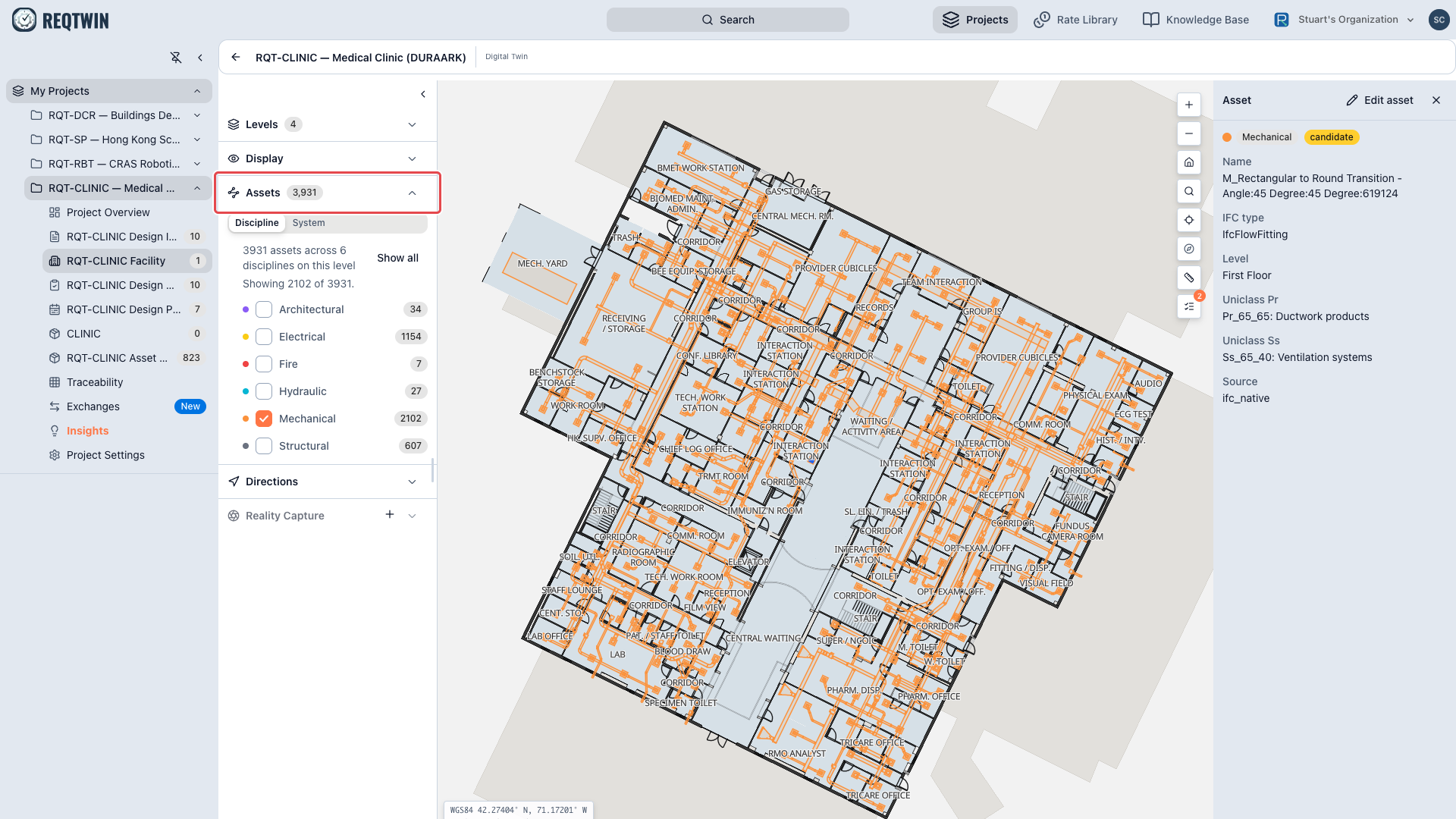
The Assets panel listing disciplines with per-level counts, with Mechanical alone ticked so only that discipline is drawn.
Show one discipline at a time
Assets start hidden, because a level with several thousand of them would bury the rooms and walls underneath. That is the point of the panel: tick Hydraulic on one level and you get the hydraulic layout of that floor, clean, with nothing else competing for the drawing.
| Control | What it does |
|---|---|
| Discipline / System | Group by trade, or by Uniclass system code |
| A row's checkbox | Show or hide just that group |
| Show all | One button, every group at once. It reads Hide all once everything is on |
Discipline is how a trade thinks (Architectural, Structural, Mechanical, Electrical, Hydraulic, Fire). System is how a specifier's schedule reads. The colours on the plan always stay keyed to discipline, in both modes, so switching grouping never repaints the drawing under you.
Reading the counts
Each row shows a colour dot and a count for the level you are viewing, so a plant room's 900 assets do not inflate the number while you are on a different floor. The list of which disciplines exist at all stays building-wide, so a discipline with nothing on this level still tells you it is somewhere.
The Assets heading carries the level total. It excludes linear assets, which are site-wide and belong to no single level, and those are listed separately below.
Opening one
Click any asset point and the inspector opens on the right.
| Field | What it tells you |
|---|---|
| Discipline and review status | Which trade owns it, and whether anyone has confirmed it |
| IFC type | The entity the model actually declared, for example IfcFlowTerminal |
| Level | The storey it sits on |
| EAM Asset ID | Its identifier in your maintenance system, where it has one |
| Uniclass Pr / Ss | Product and system classification, where it is classified |
| Source | Where the record came from, for example ifc_native |
Admins and editors get Edit asset to correct the record in place, and that correction lands everywhere the asset appears, including the Bill of Materials.
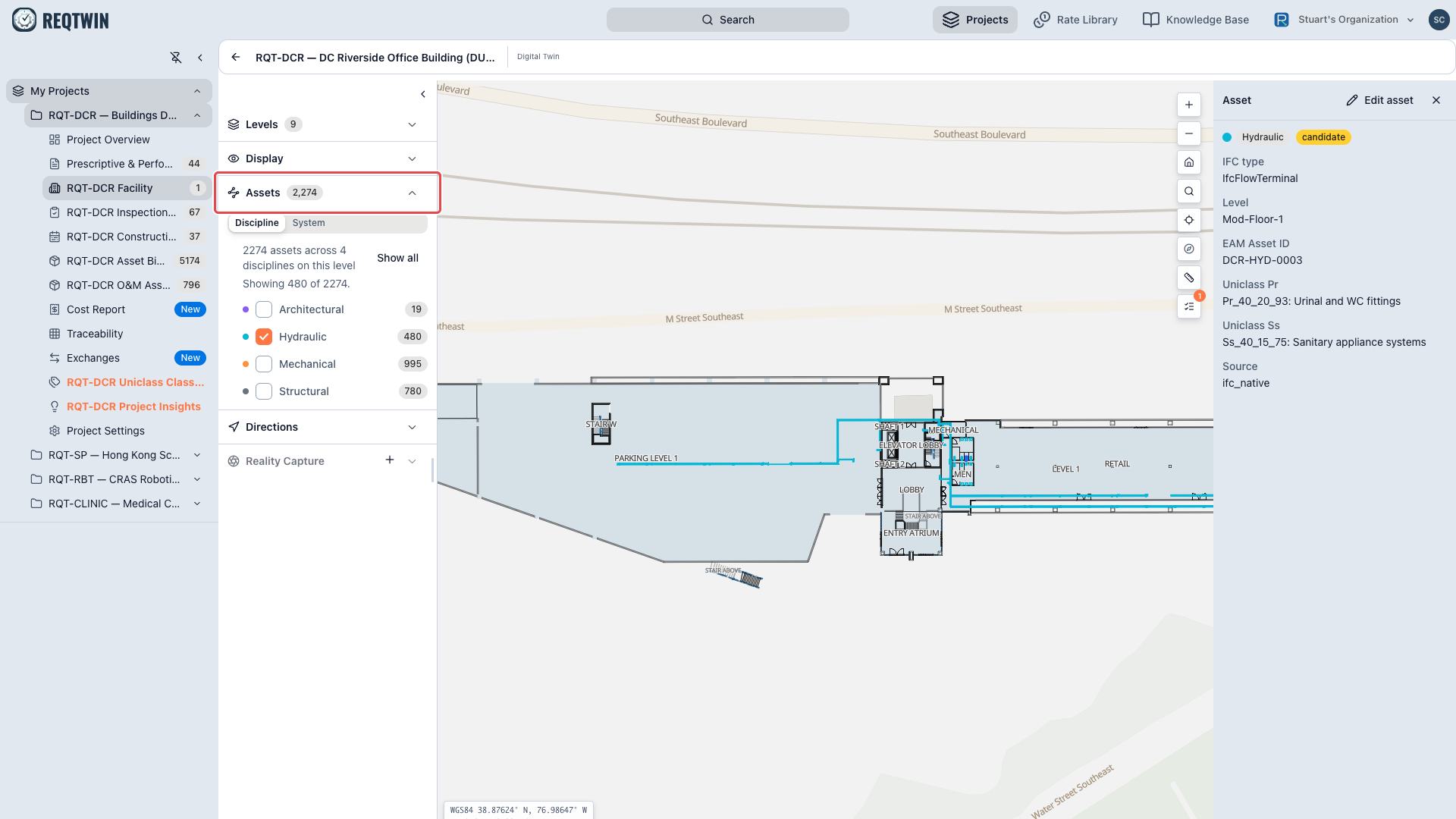
Hydraulic assets shown alone on one level, one selected, with the inspector showing its IFC type, level, EAM asset ID and both Uniclass codes.
Scan-derived assets stay separate
Equipment pulled out of a point cloud rather than authored in a model is drawn teal and dashed, and it stays out of this panel until someone reviews it. Unverified extraction output must never read as authored fabric. See "Working with Reality Capture Scans".
Known limits
Group by Discipline or by System, not both at once.
Map colour is always the discipline colour, even while grouped by System.
Counts are per level, while the list of groups offered is building-wide.