Knowledge Base
Reporting and Triaging Floorplan Issues
If something on the plan looks wrong, say so from the plan. The Issues control sits in the map toolbar on the right of the map, below Measure distance. It shows a count and turns orange once anything is open.
Filing one
Click Issues, then Report a Digital Twin issue. Pick a category (Details, Rooms, Assets or Directions), describe what you saw, and submit.
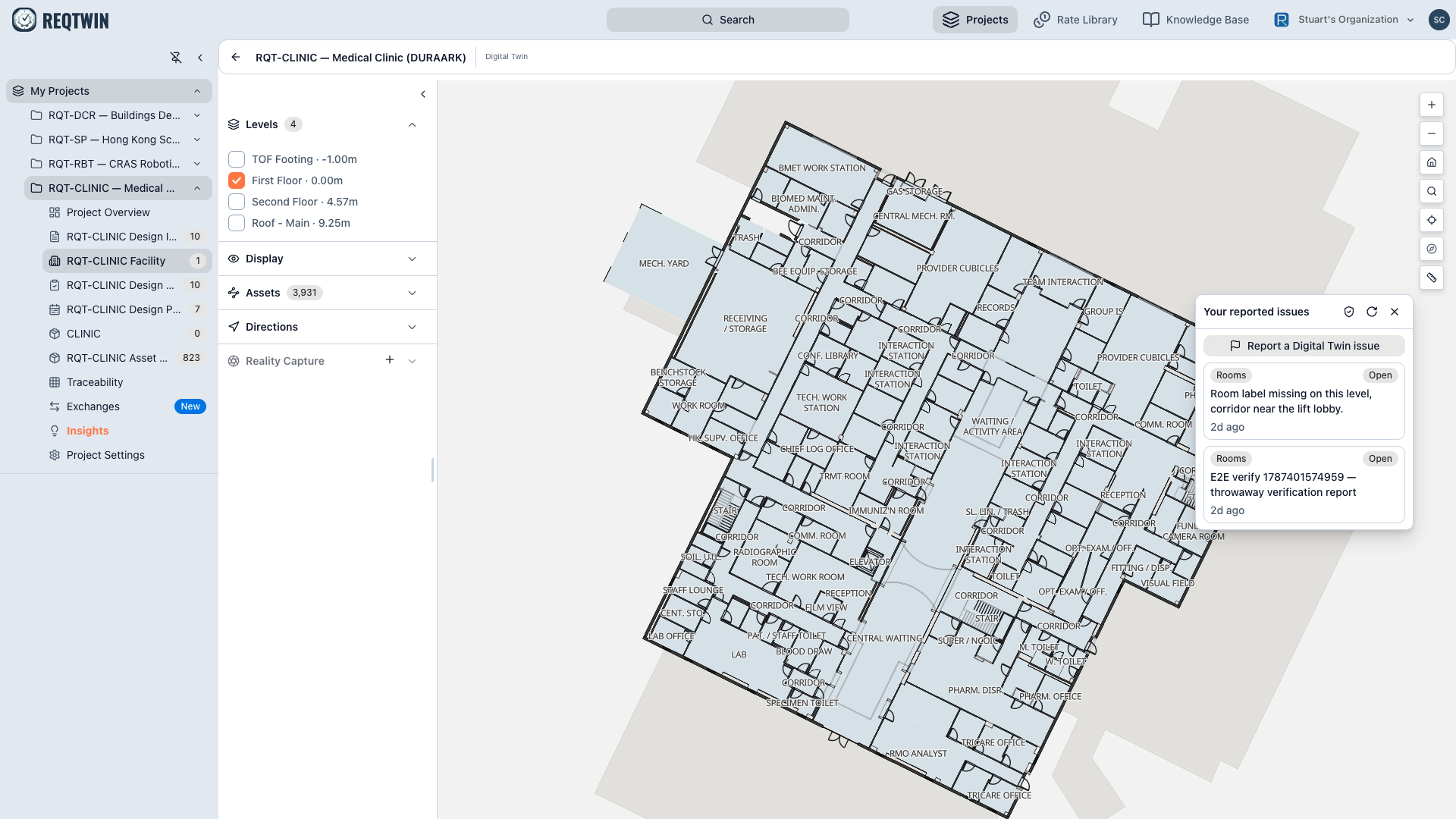
The Issues panel open from the map toolbar, listing the reports you filed with their category and status.
Anyone with access to the project can file one, including a read-only viewer. There is no click-to-pin: a report names a category, and "the Rooms layer is missing a wall on floor 2" belongs in the description.
Following it
Your panel lists your own reports, nobody else's, each with a category badge and a status.
| Status | Meaning |
|---|---|
| Open | Filed, not yet picked up |
| In progress | Someone is on it |
| Resolved | Closed, with a flag of Fixed, Won't fix, or Needs more info |
Status is live. Refresh the panel and a change a triager just made is there.
You are told what happened, not just that it happened
A resolved report carries a written explanation alongside it. "Resolved" tells you it is closed; on a report you filed because a wall was on the wrong floor, that is not the same as knowing what was done.
The wording is phrased by the model, and it decides nothing. It is handed the facts the server recorded (which correction was applied, the before and after values, or the flag a triager chose) and its only job is to put them in a sentence. If the wording cannot be produced, the report still resolves and still shows its flag.
Triage
A shield icon next to refresh switches the panel to All reports, every reporter on this facility, with a status selector on each row so triage is a dropdown rather than a separate screen. Everyone sees the button; only a project admin or editor gets rows back from it, because the database decides that, not the panel.